
Microsoft is investigating several issues causing email synchronization and connection problems when using the classic Outlook desktop client.
The first bug causes “Can’t connect to the server” errors when creating groups in classic Outlook when Exchange Web Services (EWS) is enabled for the tenant.
According to Microsoft, this occurs because the AD Graph call for ValidateUnifiedGroupProperties fails with the following error: “An internal server error occurred. The operation failed. Both AAD and MSGraph clients are null or AAD Graph is disabled for this API.”
“The Outlook Team is working to release updated group functionality that uses REST APIs which will address this issue. We will update this topic as soon as we know the REST release specifics,” Microsoft said in a recently published support document.
Until a fix is available, Microsoft advises affected users to create and edit groups using the new Outlook client or Outlook Web Access (OWA).
The other known issue is triggering 0x800CCC0F and 0x80070057 when synchronizing Gmail and Yahoo accounts in classic Outlook.
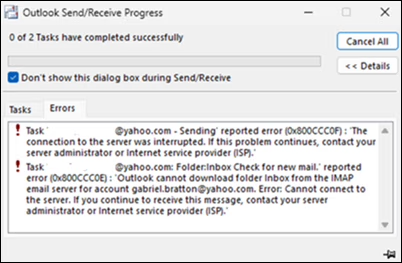
“After changing your Gmail or Yahoo account passwords in classic Outlook you are not prompted to sign in. There might be other circumstances that lead to this same issue that we are investigating,” Microsoft said.
The Outlook team is working to identify the root cause of this known issue and will share more details once a fix is available.
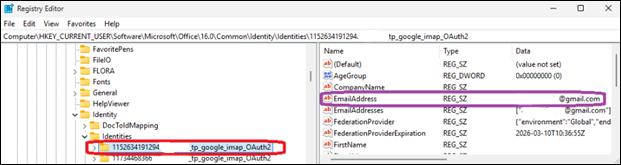
Until then, customers are advised to work around the sync problems by deleting the registry entries for the affected email address under the Identities key at Computer\HKEY_CURRENT_USER\Software\Microsoft\Office\16.0\Common\Identity\Identities in the Windows Registry Editor.
Microsoft is also investigating a classic Outlook bug, acknowledged almost two months after the first reports surfaced online, that causes the mouse pointer to disappear for some users. The same issue also affects some users of OneNote and other Microsoft 365 apps.
Redmond has asked affected customers to open a support case with the Outlook Support Team through their Microsoft 365 admin and submit diagnostic log files to assist the Outlook team with analysis.
As temporary workarounds, affected users can click an email in the message list when the cursor disappears, which may cause it to reappear, or switch to PowerPoint, click into an editable area, and then return to Outlook, which may also restore the mouse pointer.
If neither of them works, Microsoft said that restarting the impacted computer should also resolve the issue temporarily.
In January, Microsoft addressed another classic Outlook issue caused by the December 2025 updates that prevented Microsoft 365 customers from opening encrypted emails.

Malware is getting smarter. The Red Report 2026 reveals how new threats use math to detect sandboxes and hide in plain sight.
Download our analysis of 1.1 million malicious samples to uncover the top 10 techniques and see if your security stack is blinded.